Remove one book
- Open the book’s detail page.
- Scroll to the bottom and choose Remove this book.
- Confirm the removal when asked.
Remove several books
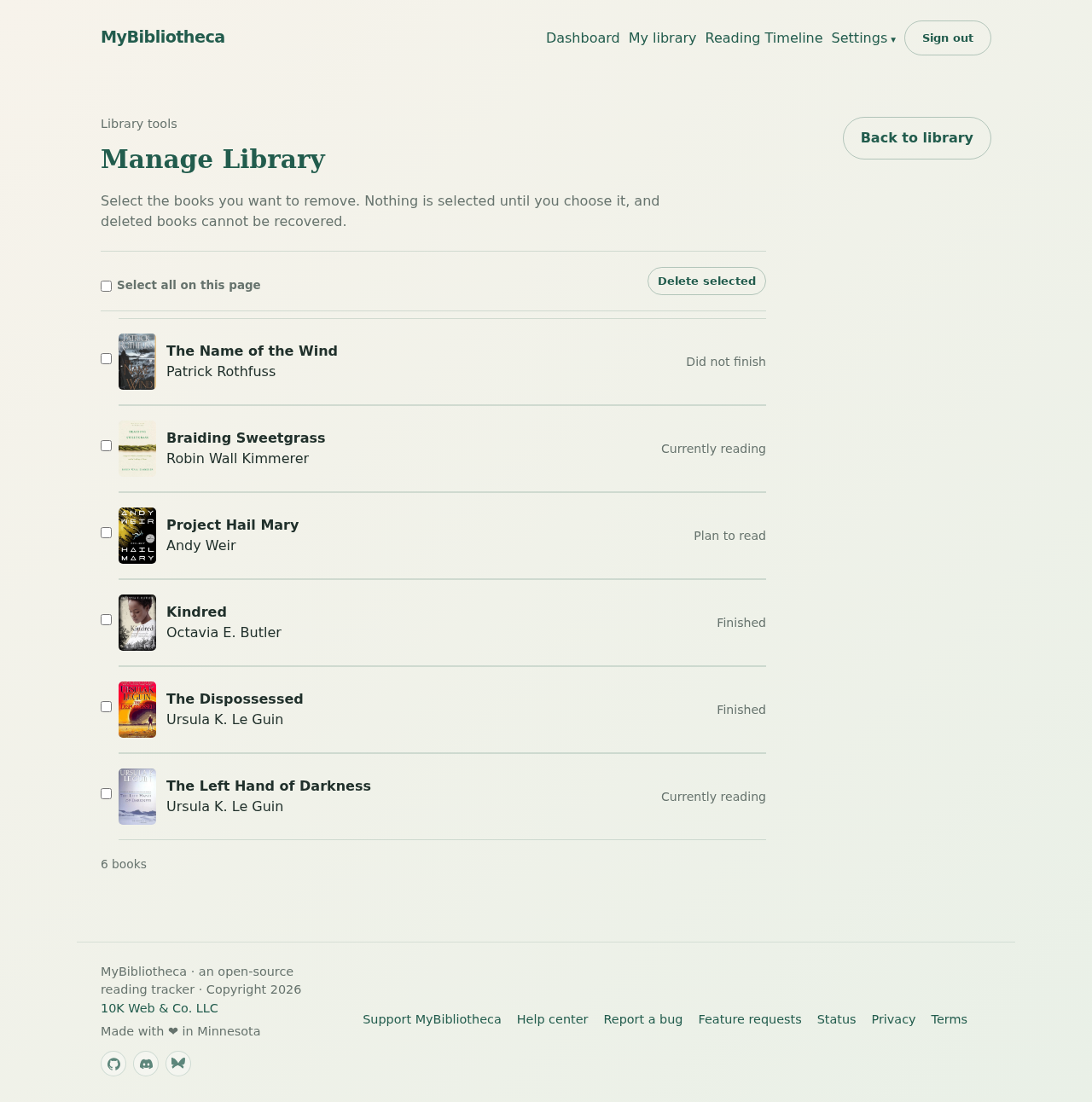
- Open My library and choose Manage Library.
- Select the entries you want to remove, or choose Select all on this page.
- Choose Delete selected, then confirm the irreversible action.
Move several books to another shelf
- Open My library and choose Manage Library.
- Select the entries you want to move, or choose Select all on this page.
- Choose a destination shelf and select Move books.
- Review the confirmation and choose OK to move the selected books.
Remove a reading session
Open the book’s detail page and find the reading session in the Reading history section. Choose Remove on that session and confirm. Removing a session changes your totals and streak calculations, but does not remove the book.
Keep in mind: Deleted books and sessions cannot be recovered from MyBibliotheca. Download a backup first if you may need the record later.