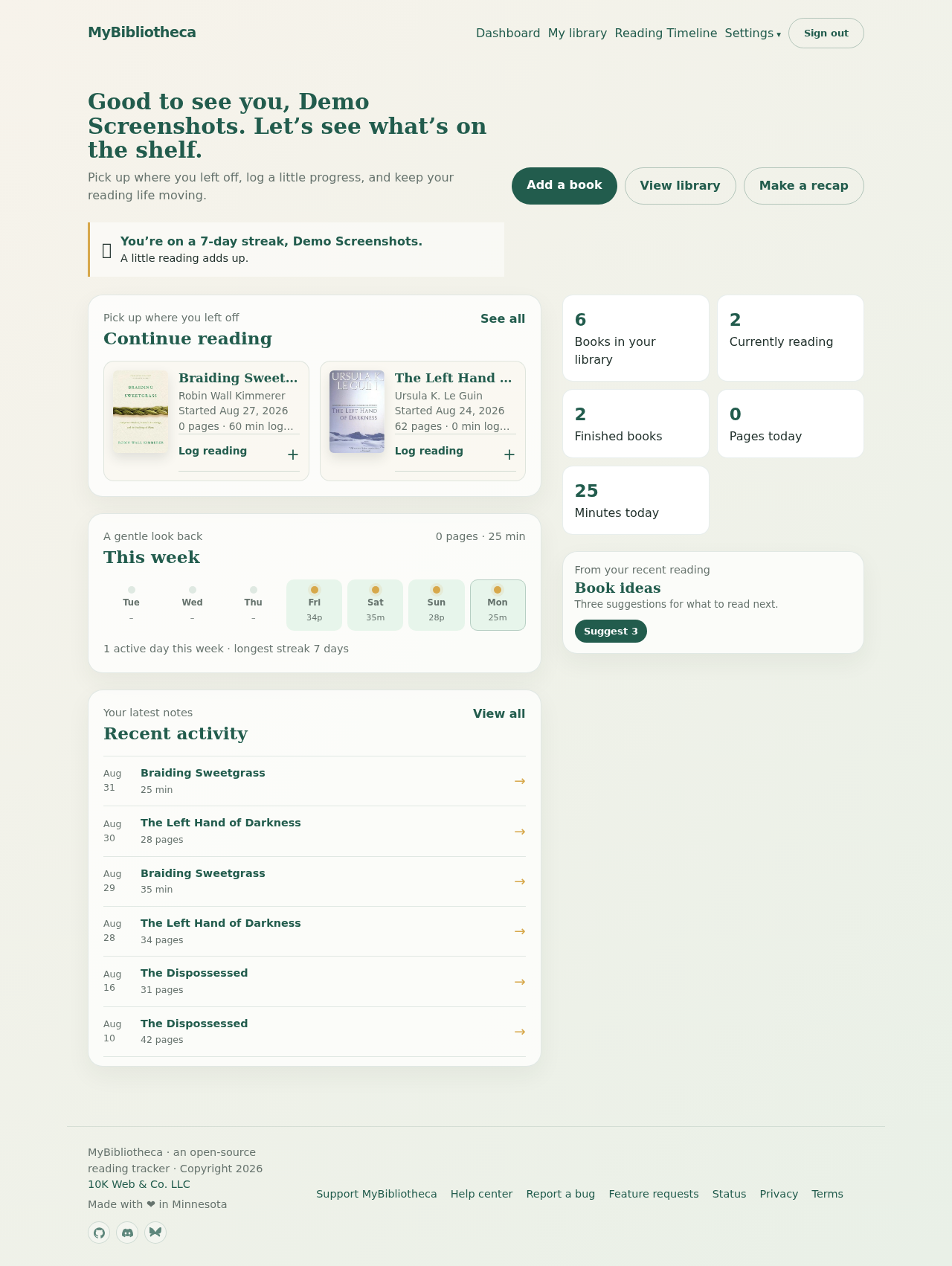
Log from the dashboard
- Open Dashboard and find a book under Continue reading.
- Open Log reading on the book card.
- Enter a current page, a percentage, pages, minutes, or any combination. The date defaults to today, and you can add a short note.
- Choose Save session.
Log from a book page
- Open any book and scroll to Log reading.
- Choose the date for the session. Today and earlier dates are accepted.
- Enter a current page or % complete for a print or ebook position. Add Pages read if you want to record an explicit session total.
- Select Audiobook on the book detail page and add its duration in hours, minutes, and seconds to use total hours-and-minutes or percentage progress. A saved total position infers listening time from the prior position when it is safe to do so. Books without a selected format show a Pages/Minutes choice for each session until you choose a permanent format.
- Add an optional thought, then choose Log this session.
Position versus session totals
A current page or percentage answers “Where am I in the book?” Pages and minutes record what you did in this session. For audiobooks, Minutes listened also advances a matching saved position when the duration is available. MyBibliotheca stores the percentage as the shared progress position while retaining the position entered for the selected format. When the previous position and current format/denominator match, moving from one position to the next can supply the session total. You can always enter Pages read or Minutes listened yourself when the total should be explicit.
A position-only entry does not invent pages or minutes. It still saves your place and can appear as an active reading day, while Pages today and Minutes today only include the actual session metrics recorded.
Switch formats without rewriting history
Hardcovers, paperbacks, ebooks, and audiobooks can describe the same work differently. Select the current format on the book detail page, then update its page count or audiobook duration when needed. MyBibliotheca uses that format as the source of truth for future logs and progress; existing page progress remains intact when you select Audiobook.
Historical sessions remain exactly as they were entered. A page session remains a page session, and a minutes session remains a minutes session; changing the book’s format does not recalculate or delete them.
Set the readable end page
- Open the book from its title on the dashboard or from My library.
- In the book details form, select Paperback, Hardcover, Ebook, or Audiobook. Enter the physical Edition page count for page formats, or Audiobook duration as hours, minutes, and seconds for audio progress.
- If indexes, footnotes, appendices, or other extra matter follow the readable text, enter the last readable page in Progress ends at page.
- Choose Save changes. Future percentages use the readable end page, while your physical edition page count remains available for reference.
Keep in mind: Changing the readable end affects the progress display for that book; it does not rewrite or delete any reading sessions.
Where to review or change things
Use Dashboard for a quick session, the book’s detail page for its progress settings and full log, and Reading Timeline for dated history. Open Settings to change your timezone, reading reminders, starting streak, import options, public-page choices, or data backup. Your existing logs, notes, pages, and minutes are kept when these settings change.
Good to know: If you forget a day, log the session later and choose the date it actually happened. Reading logs accept today or an earlier date.